> For the complete documentation index, see [llms.txt](https://docs.diracinc.com/llms.txt). Markdown versions of documentation pages are available by appending `.md` to page URLs; this page is available as [Markdown](https://docs.diracinc.com/user-guide/project-open/manipulate-hierarchy.md).
# Manipulate hierarchy
This will cover the actions you can take to change the hierarchy of your project
## Automated Actions
### Automated Sequencing
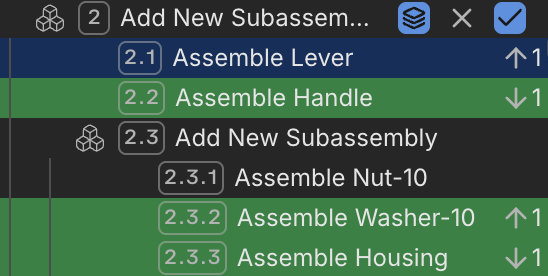
In addition to automatically recommending a top-level sequence for your model, BuildOS can also recommend sequences for your phantoms. To leverage these recommended sequences, navigate to the node tree on the left -> right click on any phantom -> Show Suggested Order
At this point, you will have 2 options:
* **Shallow Order:** Recommends a sequence for all direct children of the selected phantom
* **Deep Order:** Recommends a sequence for all of the phantom's descendants, both direct and indirect children
### Previewing and Accepting
Once you select Shallow Order or Deep Order, if BuildOS does not have any recommendations, you will be notified that "Any suggested sequencing is already applied"
If BuildOS does have recommendations, you will enter a preview of the assembly with the recommended changes. The arrows signify the swaps that are being suggested. To accept BuildOS' recommendations, click the checkbox in the node tree.
Note: A similar variant of this feature was previously offered in the now-deprecated simulation menu
### Auto-Clustering
Rather than manually create clusters, BuildOS can automatically generate clusters for your builds. Similar to automated sequencing, Auto-Clustering has both shallow and deep options, with the shallow option automatically clustering direct children and the deep option clustering all direct and indirect children.
However, unlike automatic sequencing, Auto-Clustering is an immediate action, occurring without a preview option.
To use Auto Clustering, navigate to the node tree on the left -> right click on any phantom -> Select Shallow or Deep auto-cluster
## Manual actions
### Reorder
To reorder your assembly, you can simply drag and drop an item in the left tree to the desired location.
You can multi-select in the tree and the viewer using `ctrl`, `cmd`, or `shift` and then drag all the parts you wish to.
Almost all drag actions are allowed, but BuildOS enforces some limitations:
* If you have a cluster, you cannot drag other parts into the cluster since they are not the same shape.
* We recommend you make a kit instead!
* You cannot drag a kit inside of another kit.
* If you wish to combine two kits, try dissolving one, and then dragging all of the parts into the other.
### Create phantoms and groups
You can select multiple items in the tree and create a grouping of them if you wish. Below are the types of groups you can create:
* [Phantom](https://dirac-inc.gitbook.io/dirac/how-to-be-successful-in-buildos/concepts/steps#phantom-step)
* [Combination](https://dirac-inc.gitbook.io/dirac/how-to-be-successful-in-buildos/concepts/steps#combination-step)
* [Cluster](https://dirac-inc.gitbook.io/dirac/how-to-be-successful-in-buildos/concepts/steps#cluster-step)
* Parts must be identical to group in a cluster
* Try the [Bill of Materials filter](https://dirac-inc.gitbook.io/dirac/user-guide/project-open/filtering#filter-by-text-and-type-of-step) to create clusters even faster!
* [Kit](https://dirac-inc.gitbook.io/dirac/how-to-be-successful-in-buildos/concepts/steps#kit-step)
### Give a phantom its own instruction
If a phantom should be built, reviewed, and approved on its own, you can convert it to a [subassembly](https://dirac-inc.gitbook.io/dirac/how-to-be-successful-in-buildos/concepts/phantoms-and-subassemblies).
1. Right click the phantom in the tree.
2. Select **Convert to** -> **Subassembly**.
The subassembly's steps move into their own instruction, and your current instruction shows it being installed as a completed unit. From there you can reassign that instruction to another member of your team.
To bring a subassembly back into the instruction around it, right click it and select **Unlock to Phantom**.
{% hint style="info" %}
A subassembly's contents are locked while it has its own instruction. To move parts in or out of it, unlock it to a phantom first, or make the change from within its own instruction.
{% endhint %}
### Add Instruction steps
If you wish to add an [instruction step](https://dirac-inc.gitbook.io/dirac/how-to-be-successful-in-buildos/concepts/steps#instruction-step):
1. Select the item you want to add the instruction step after.
2. From the right click menu, select "Create Instruction".
1. You can also add an instruction using the create step button on top of the tree
Create step button
### Renaming items
If you wish to rename one or more items, you can easily do so.
If you wish to rename a single item, you can simply double click on it to rename it.
If you wish to change multiple names at once:
1. Select the item(s) you wish to rename.
2. From the right click menu, select "Rename"
Rename menu
3. In general, the display of your instructions will be as follows:
4. Using the rename menu, you can see fields to change your items as well as a preview of what the result would be. The fields to change your items are:
1. Process name
1. In your steps in Instructions view, this is the text shown before the model name.
2. Model name
1. This is the text shown in Model view, and also shown after the process name in your steps in Instructions view.
3. Custom instruction name
1. This is a custom field which will overwrite what is displayed in instructions view.
2. This is useful if you desire a different format for your instruction steps than BuildOS's default, which is "process name + model name".
4. To fill out these fields, you can use the buttons at the bottom to pop in the current values for the model name and process name.
Rename menu using custom instruction name
5. When you are finished, click "Rename" to accept your changes.
### Search your project
You can search through using the search button on top of the tree. You can enter the text you wish to search by, and additionally filter by the types of items in your assembly.